 Soda Player
How to Stream a Torrent or Magnet Link in Soda Player
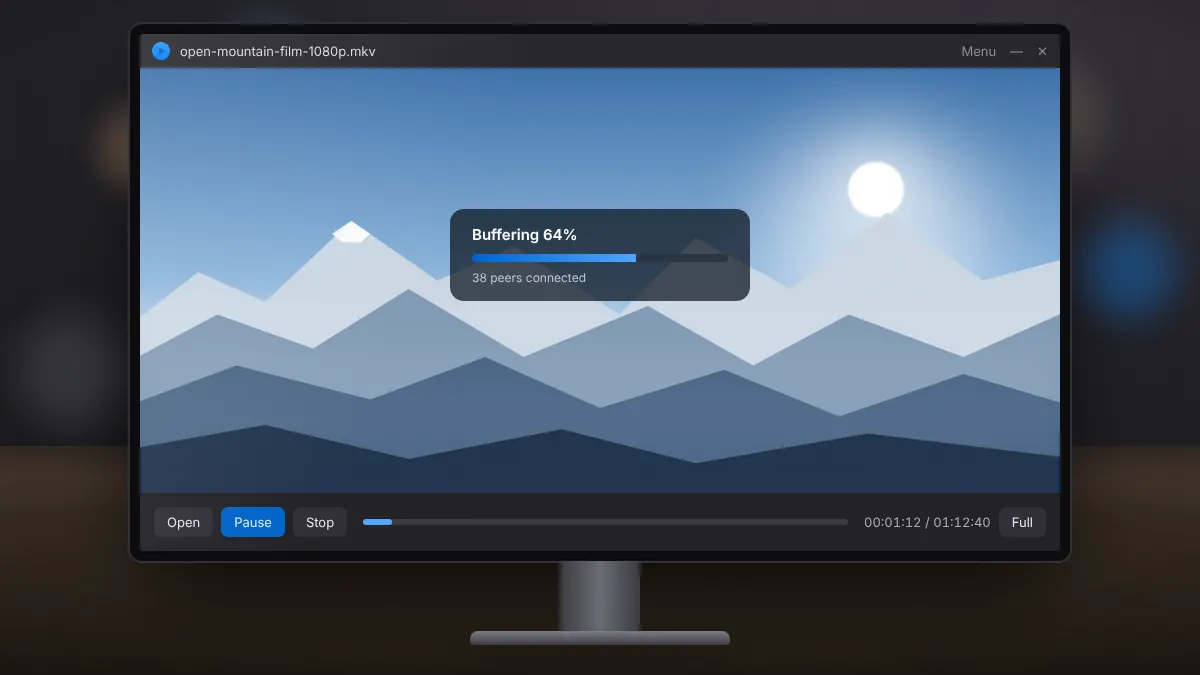
Open a magnet link or torrent file, start watching while it buffers, and keep your streaming legal.
Read fullA clean setup on Windows 10 or 11, from saving the installer to opening your first video.
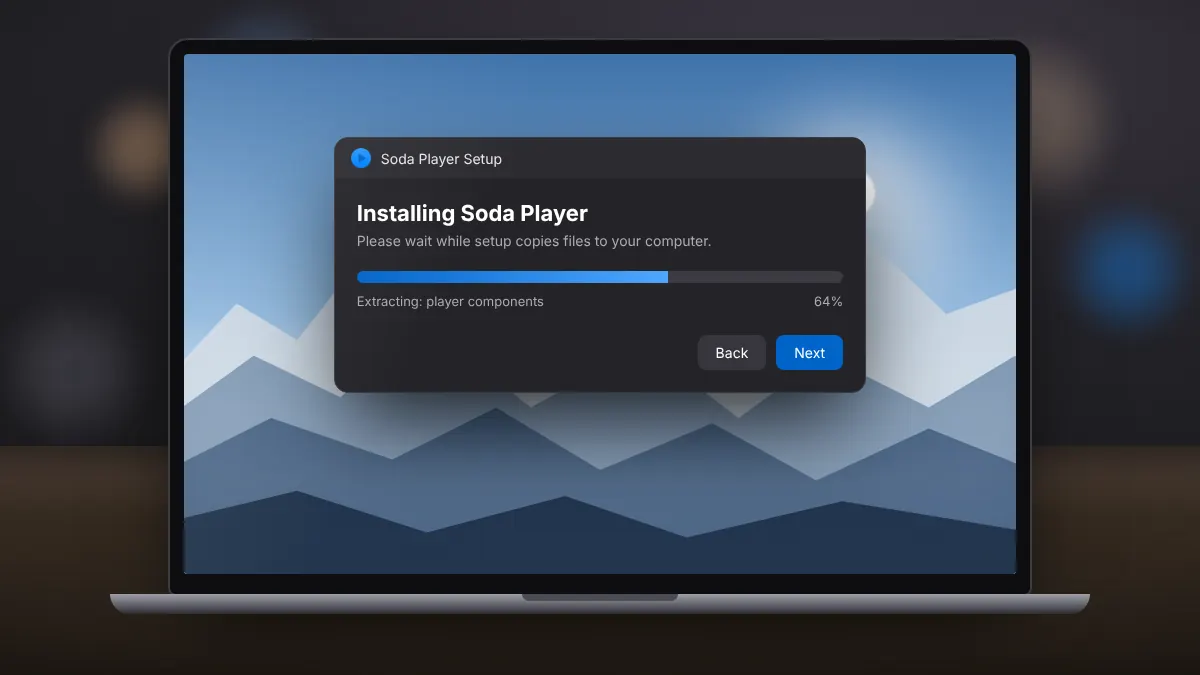
Soda Player installs like most Windows desktop apps, through a short setup wizard. The steps below cover Windows 10 and Windows 11. Older systems such as Windows 7 and 8 follow the same pattern, although newer releases of the player are tested mainly on current Windows versions.
Make sure you are using an account that can install software. On a work or school computer, you may need an administrator to approve the installation. You also need around 300 MB of free space: the installer is roughly 80 MB, and the installed program takes more once unpacked.
If an older copy of Soda Player is already installed, you can usually install the new version over it. For the cleanest result, remove the old one first through Settings > Apps.
Use the download section on our homepage. The file begins saving straight away and, in most browsers, lands in your Downloads folder. On a typical home connection it finishes in a minute or two.
Open the downloaded file. Windows may show a User Account Control or SmartScreen prompt asking whether the app may make changes to your device. Confirm to continue. This prompt appears for nearly all desktop programs and simply checks that you started the installation yourself.
Read each screen before moving on. Accept the licence terms if you agree with them, and keep the default installation folder unless you store programs on another drive. A desktop shortcut is handy if you plan to open videos from inside the player.
When setup completes, start Soda Player from the Start menu. You can open a local video file, drag one onto the window, or paste a magnet link or torrent file for content you have the right to watch. Playback begins once enough of the video has buffered.
That is all there is to it. Once installed, Soda Player opens local files, streams and casts from one simple window.
Open a magnet link or torrent file, start watching while it buffers, and keep your streaming legal.
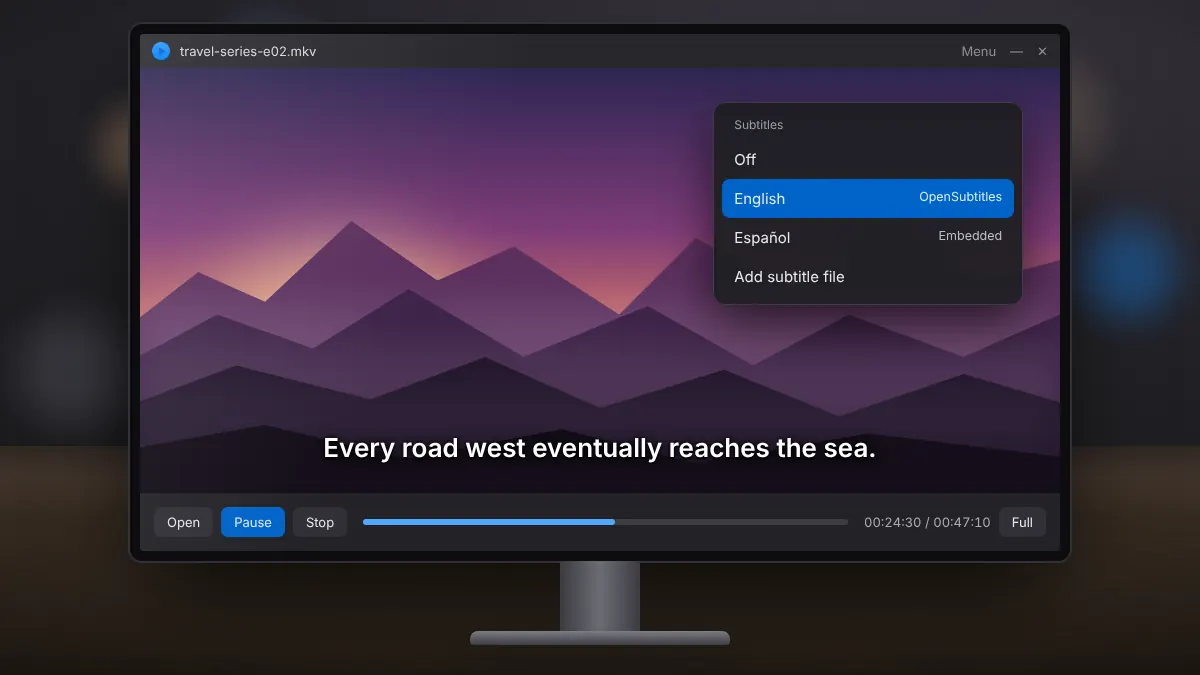
Read fullHow automatic subtitle search works, how to load your own files, and quick fixes for timing problems.
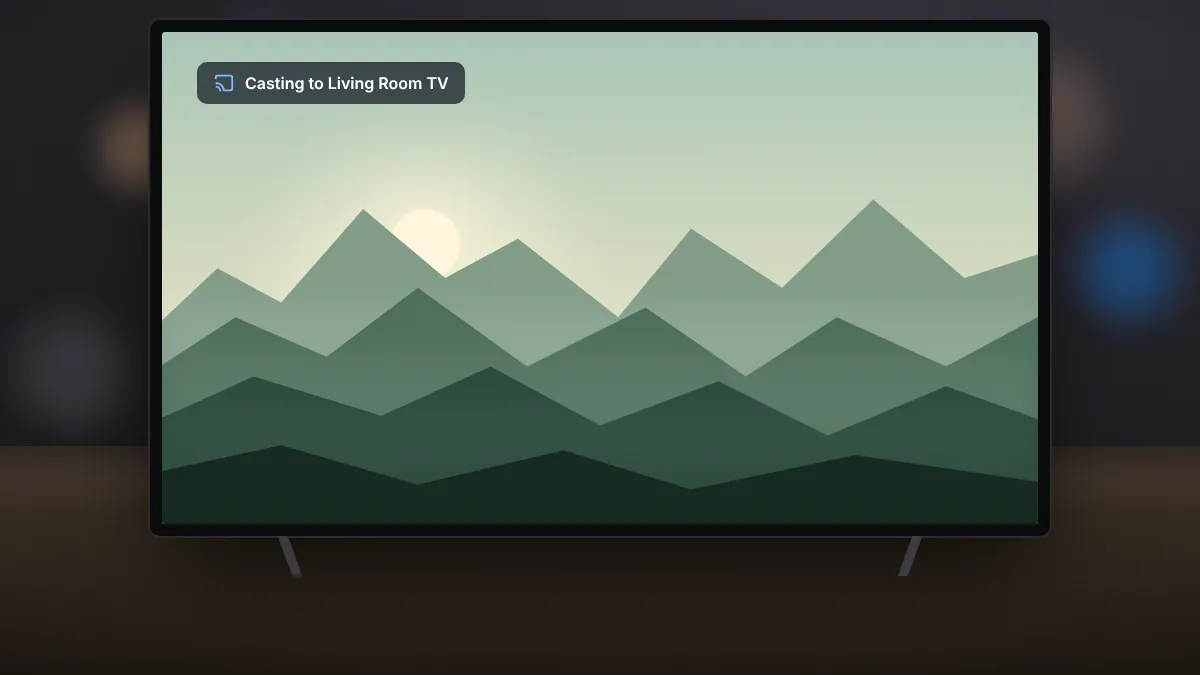
Read fullSend video to the big screen, keep subtitles and surround sound, and fix devices that refuse to appear.
Read full