 Soda Player
Fixing Slow Buffering and Stutter in Soda Player
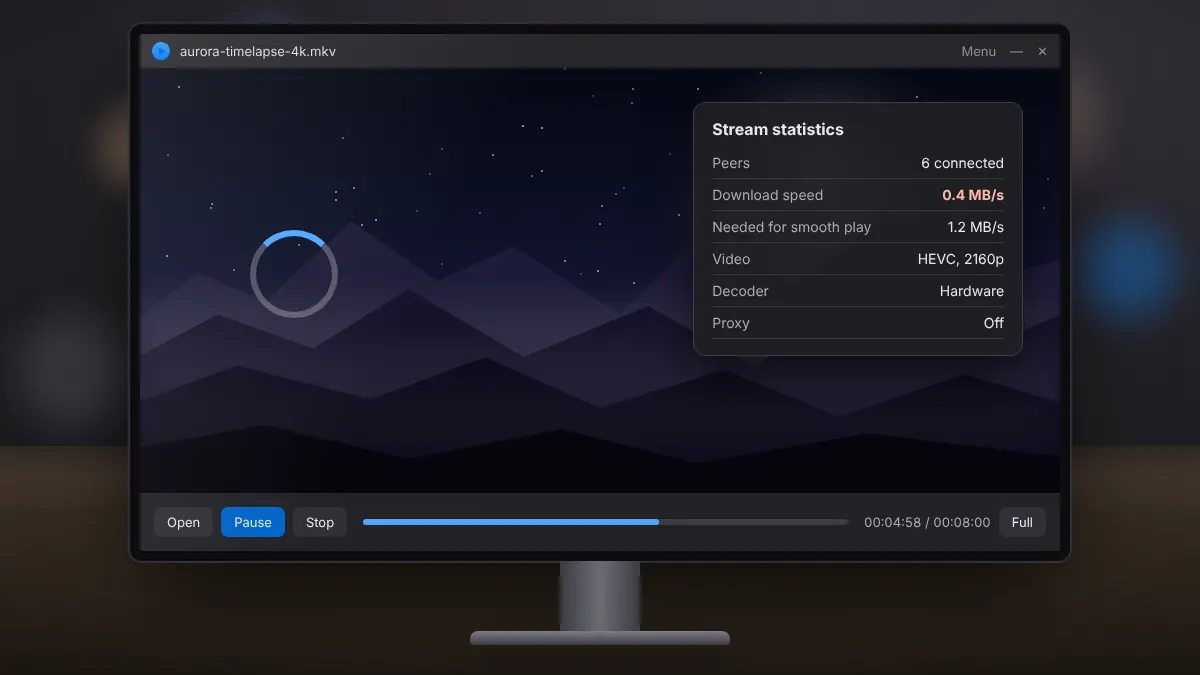
A step-by-step way to tell network problems from decoding problems, and fix both.
Read fullWhat the shield icon does, how it differs from a VPN, and when switching it on makes sense.
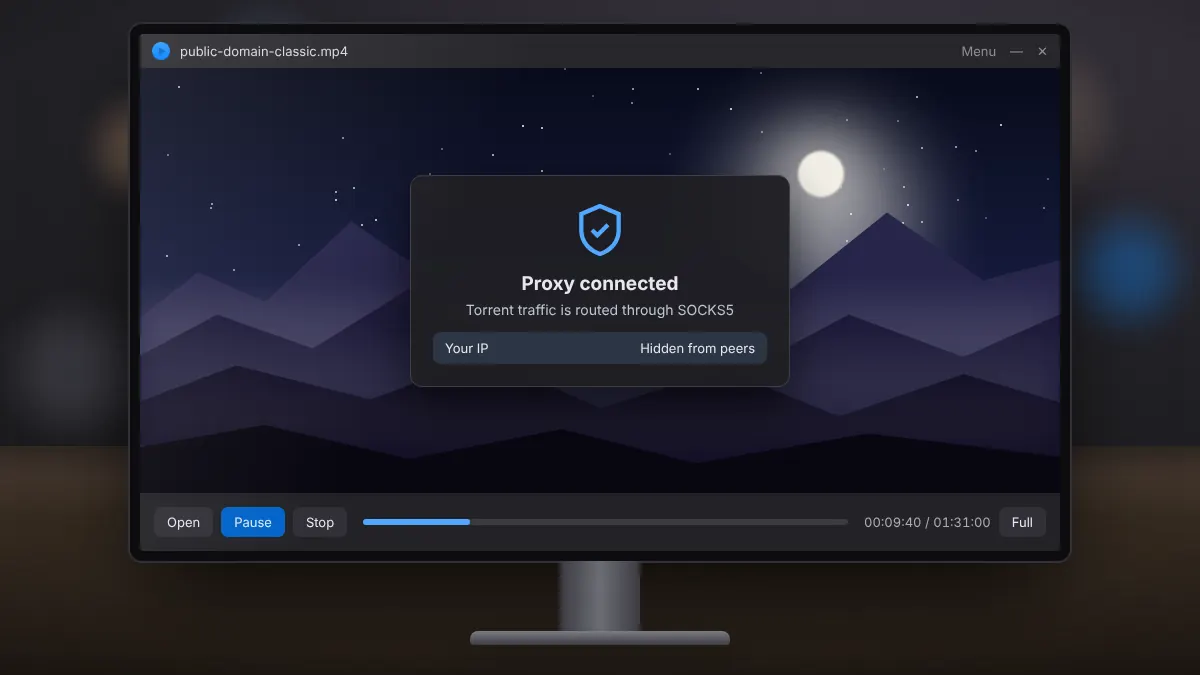
Soda Player includes a SOCKS5 proxy for its BitTorrent traffic. It is switched off by default, and you turn it on with the shield icon in the player. Here is what it does and what it does not do.
A proxy relays your connection through another server. When the proxy is on, peers in a torrent swarm see the proxy server's address rather than your own IP address. It can also help if your internet provider slows down BitTorrent traffic or a network blocks it.
The two are often confused. A VPN routes all traffic from your computer through an encrypted tunnel. The built-in proxy only covers Soda Player's torrent traffic and does not encrypt your other apps, your browser or your casting.
| Feature | Built-in proxy | VPN |
|---|---|---|
| Covers | Soda Player torrent traffic only | Everything on the device |
| Hides your IP from peers | Yes | Yes |
| Encrypts traffic | Not necessarily | Yes |
| Setup | One click | Separate app |
For local files, web streams and casting, the proxy has no effect, so there is no need to enable it. It only matters when you stream torrents.
A step-by-step way to tell network problems from decoding problems, and fix both.
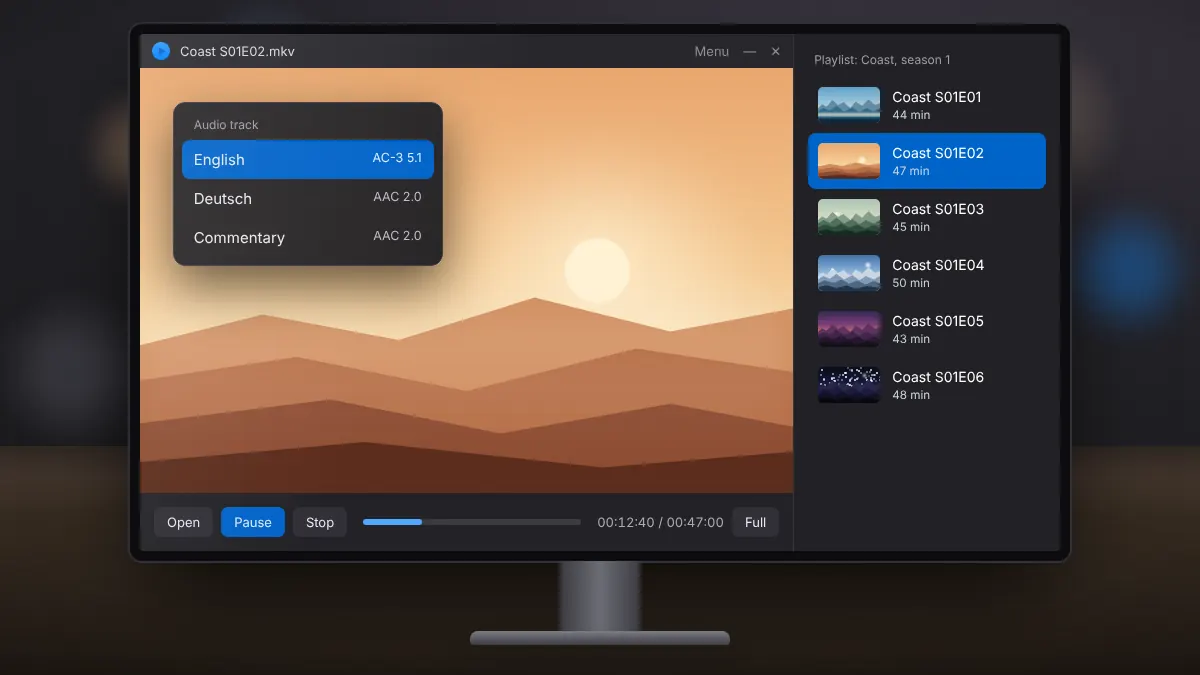
Read fullSwitch languages and commentary tracks, and queue local files or a whole season in order.
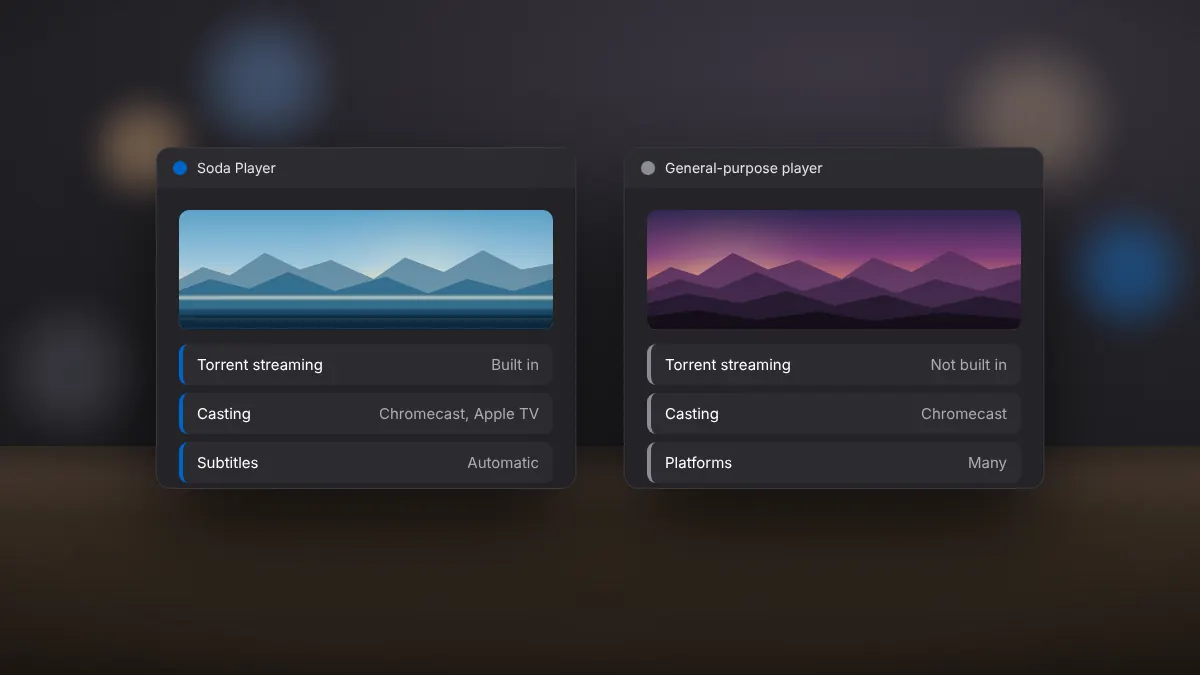
Read fullTorrent streaming, casting, subtitles and ease of use compared side by side.
Read full