 Soda Player
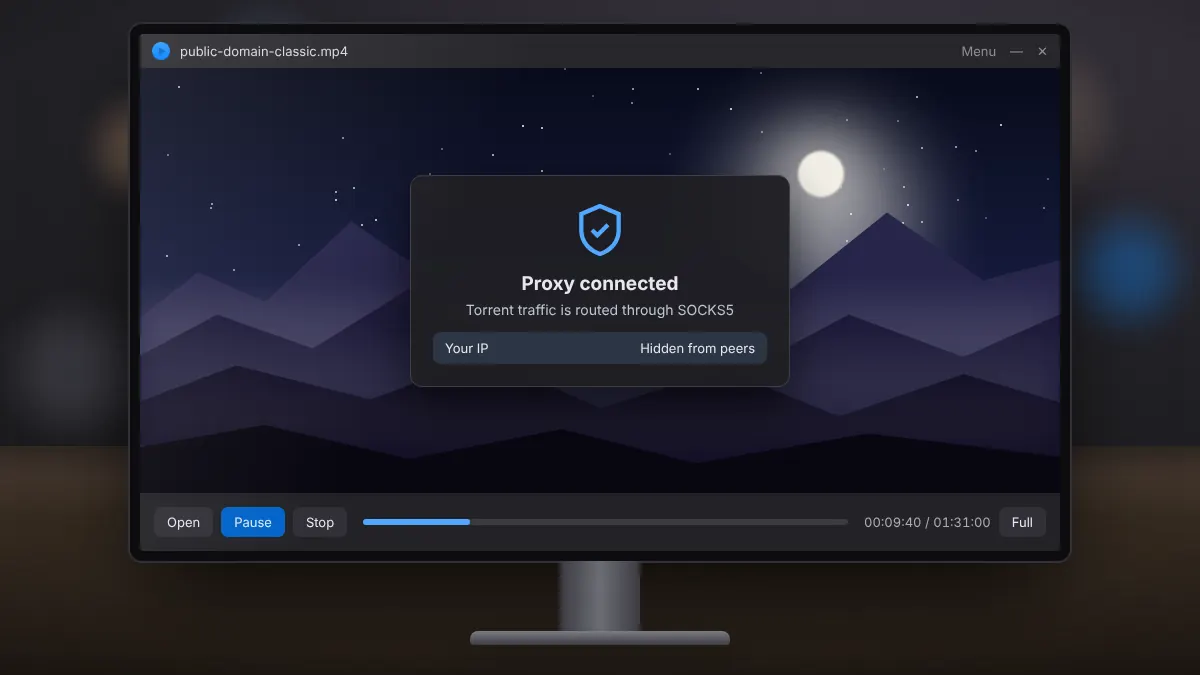
Using the Built-in SOCKS5 Proxy in Soda Player
What the shield icon does, how it differs from a VPN, and when switching it on makes sense.
Read fullSend video to the big screen, keep subtitles and surround sound, and fix devices that refuse to appear.
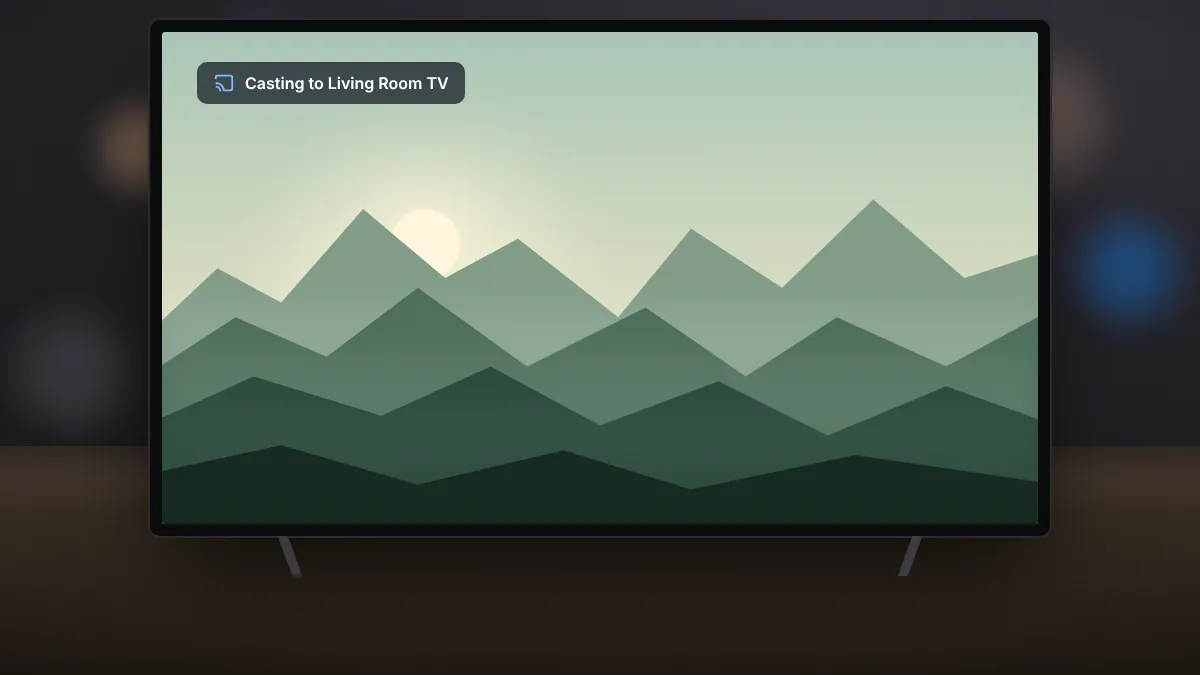
Soda Player can send what you are watching to a Chromecast, an Apple TV or a TV with Chromecast built in. When your TV supports the video and audio formats, the player passes them through without converting them, which keeps quality high and the computer cool.
Playback moves to the TV and the player window becomes a remote control for pause, seek and volume.
With compatible hardware, Soda Player can cast up to 4K resolution and pass through 5.1 or 7.1 surround sound. If your TV cannot decode a particular format, the player may need to convert it, which uses more processing power on your PC.
Subtitles you select in the player are sent along with the video. Pick the language before you start casting to avoid a pause while it reloads.
Select the cast icon again and choose to stop casting. Playback returns to the computer at the same point.
What the shield icon does, how it differs from a VPN, and when switching it on makes sense.
Read fullA step-by-step way to tell network problems from decoding problems, and fix both.
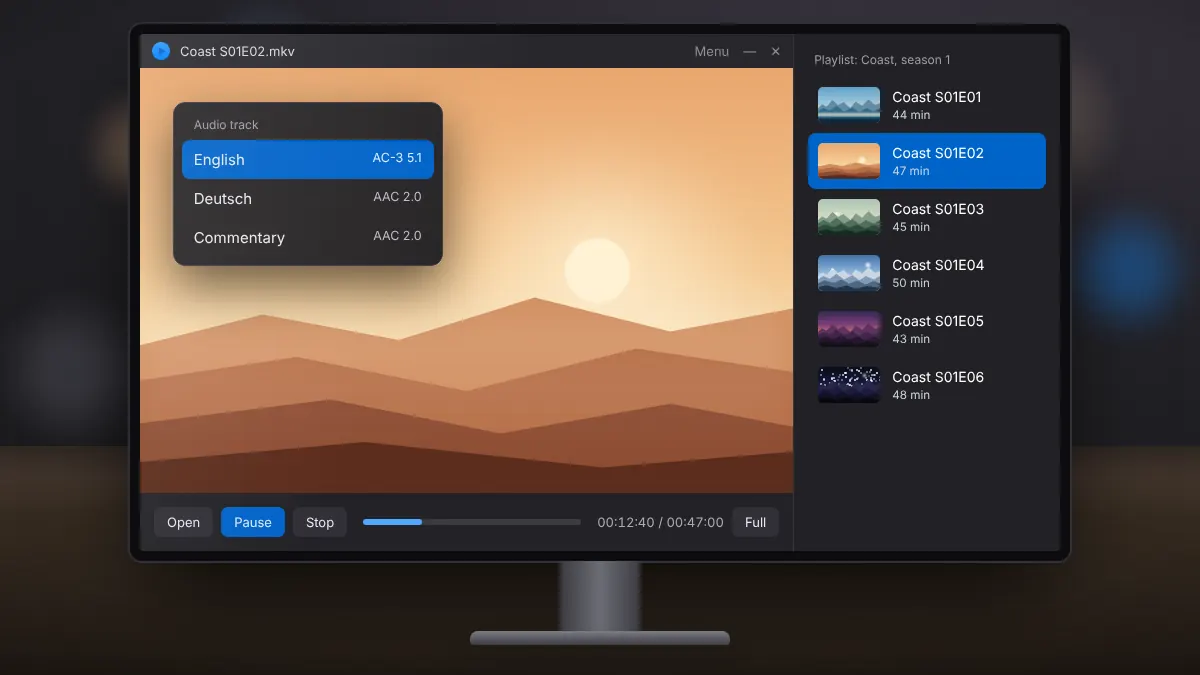
Read fullSwitch languages and commentary tracks, and queue local files or a whole season in order.
Read full