 Soda Player
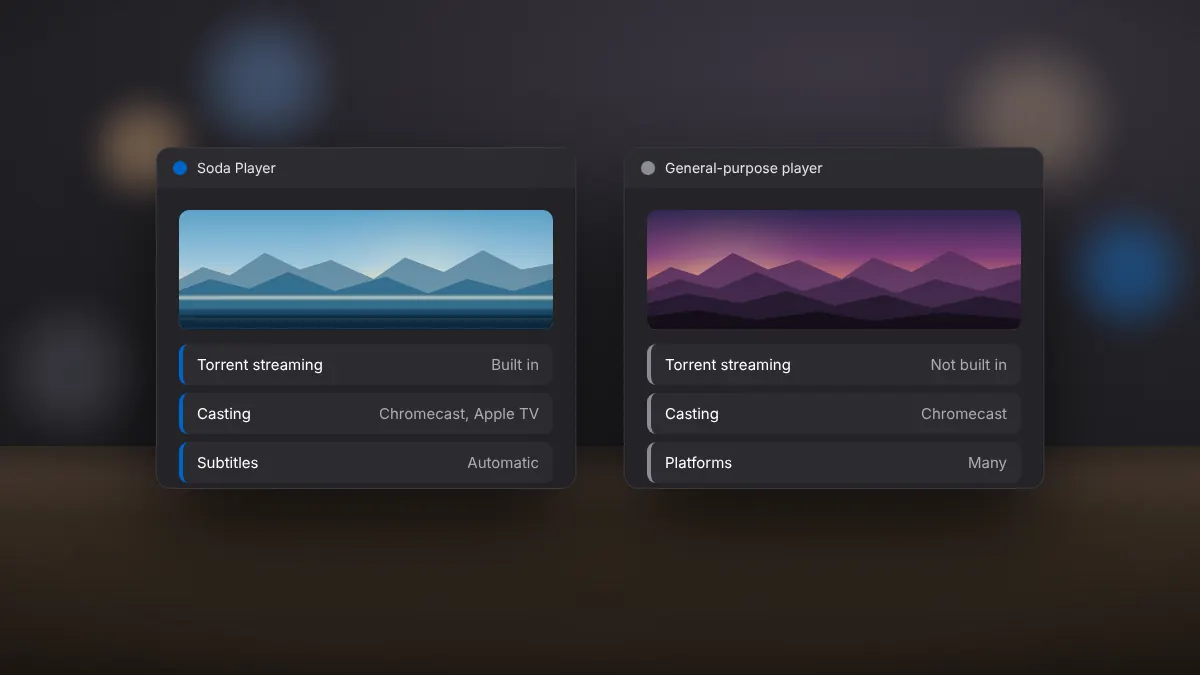
Soda Player vs VLC: Which Video Player Suits You?
Torrent streaming, casting, subtitles and ease of use compared side by side.
Read fullSwitch languages and commentary tracks, and queue local files or a whole season in order.
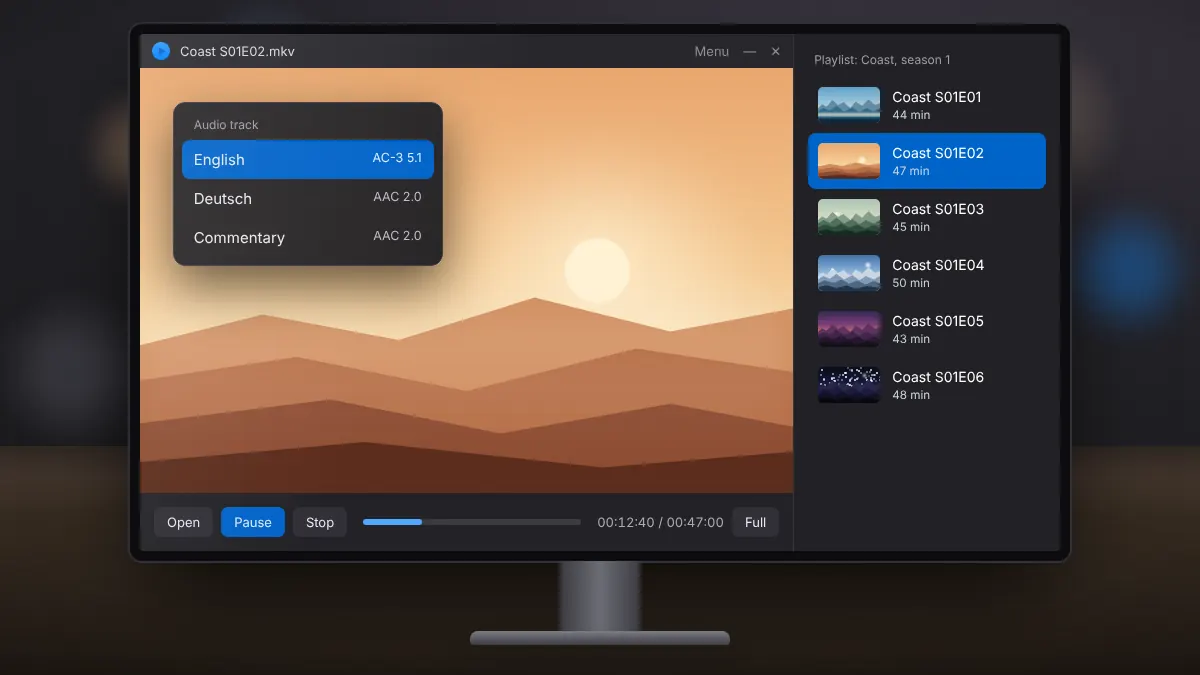
Films and series often include more than one audio track, and a season is far easier to watch as a playlist. Soda Player handles both for local files and torrent streams.
While a video plays, open the audio options in the player menu. Available tracks are listed by language or name, for example the original language, a dubbed version and a commentary. Select one and playback switches without restarting.
If tracks show only as numbers, the file was created without language labels. Try each briefly to find the right one.
A 5.1 or 7.1 track on laptop speakers or headphones is mixed down to stereo. Dialogue can sound quiet because it sits mainly in the centre channel. When a stereo track exists, it is usually clearer on small speakers.
The player moves from one episode to the next automatically.
When a torrent contains several videos, Soda Player lists them so you can pick where to start. Episodes stream in order, and only the files you watch need to be fetched.
Torrent streaming, casting, subtitles and ease of use compared side by side.
Read fullPublic domain classics, open films and archives that you can stream over BitTorrent with a clear conscience.
Read fullA clean setup on Windows 10 or 11, from saving the installer to opening your first video.
Read full