How to Install Soda Player on Windows 10 and 11
A clean setup on Windows 10 or 11, from saving the installer to opening your first video.
Read fullSoda Player is a free video player for Windows and Mac that plays local files, web streams and torrent videos from one clean window. Open a magnet link and start watching in moments, send the picture to your TV, and let subtitles find themselves.
This site brings together the current installer, a simple setup walkthrough and practical guides for streaming, casting and smooth playback.

The latest Windows release, published by Freedom Island Privacy Inc. Setup takes a couple of minutes.
Allow Soda Player through Windows Firewall on private networks when asked. Torrent streaming and casting both need network access.
Plenty of free players exist. Soda Player stands out for people who stream and cast more than they tinker with settings.
| Feature | Soda Player | Torrent client | General-purpose player |
|---|---|---|---|
| Stream torrents and magnet links | ✓ | ✕ | ✕ |
| Watch before the download finishes | ✓ | ✕ | ✕ |
| Cast to Chromecast and Apple TV | ✓ | ✕ | Chromecast |
| Automatic subtitle search | ✓ | ✕ | Extension |
| Built-in SOCKS5 proxy for torrents | ✓ | Some | ✕ |
| DVD menus and file conversion | ✕ | ✕ | ✓ |
If you need DVD menus, format conversion or Linux support, a broader player such as VLC fits better. Our Soda Player vs VLC comparison goes through the differences in detail. Many people keep both installed: Soda Player for streaming and casting in the evening, and a general-purpose player for everything else. Because both are free, trying them side by side with your own videos is the quickest way to find what suits you.
Soda Player combines three things that usually need separate tools: a media player, a torrent client tuned for streaming, and a casting app. The result is one window that handles almost any video you point it at.
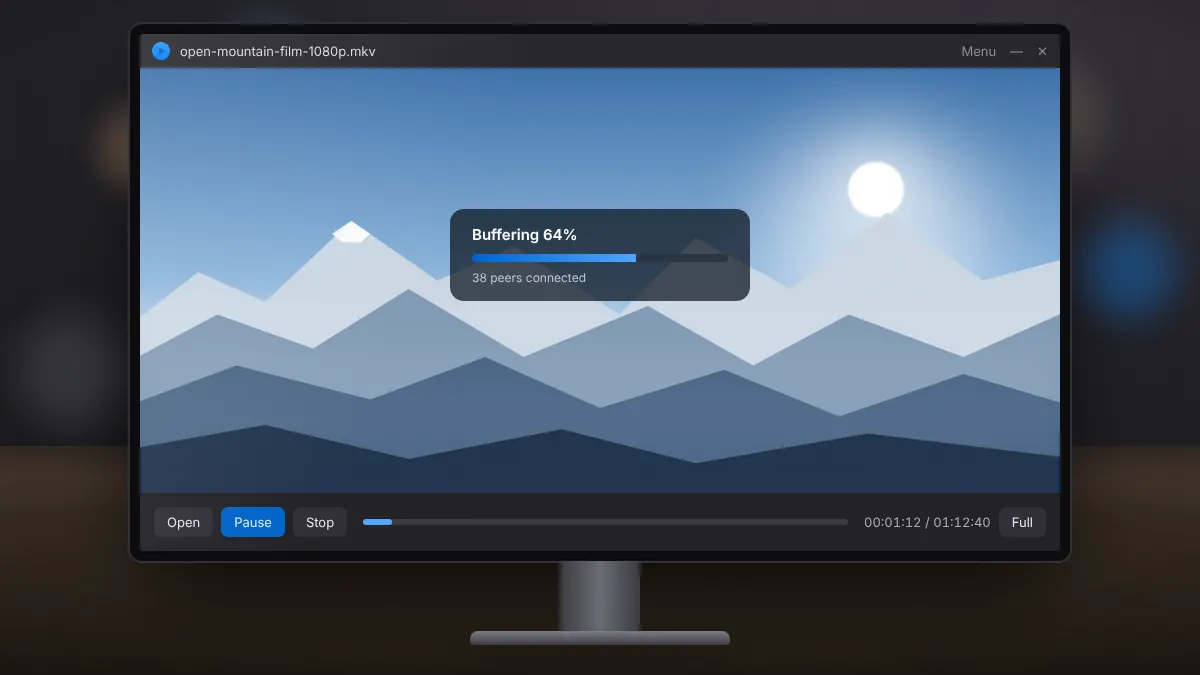
Open a magnet link or torrent file and start watching while the rest of the video arrives, without waiting for a full download.
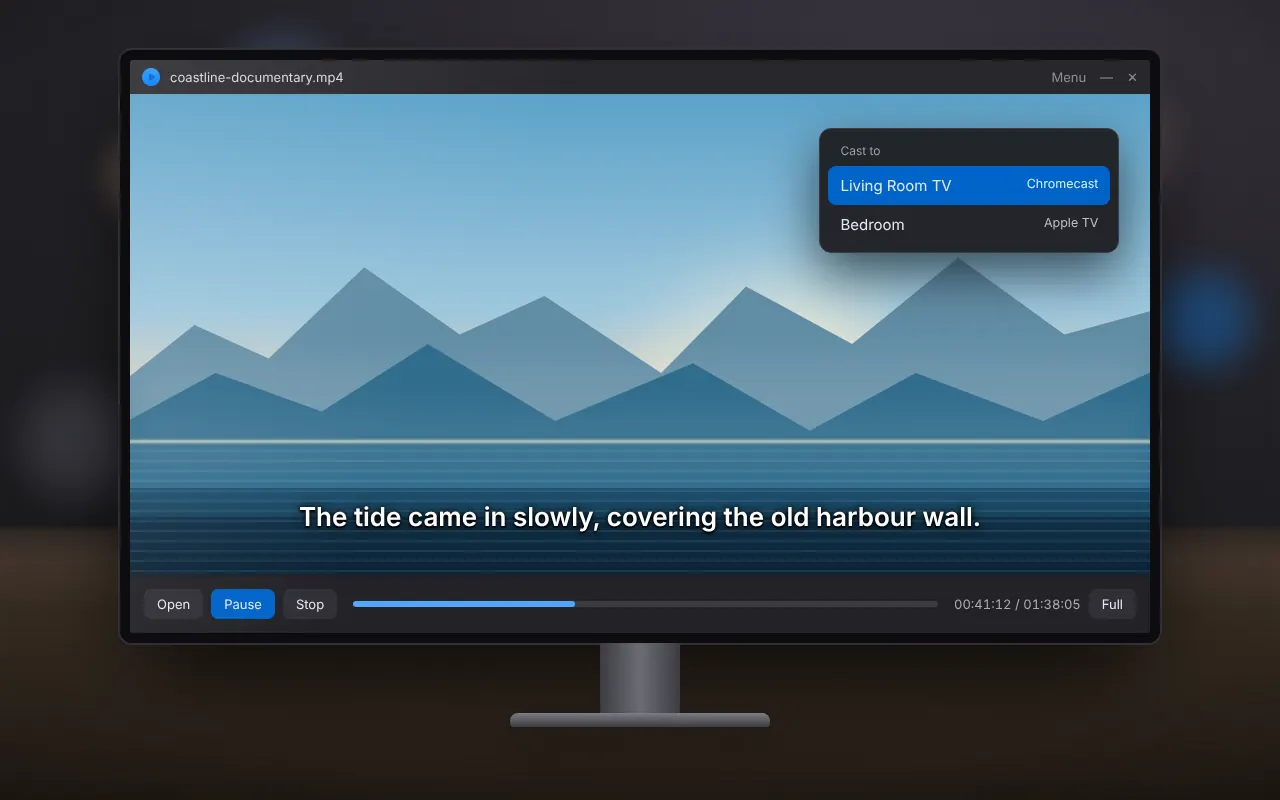
Send video to a Chromecast, Apple TV or Chromecast-enabled TV, with support for 4K and 5.1 or 7.1 sound on compatible devices.
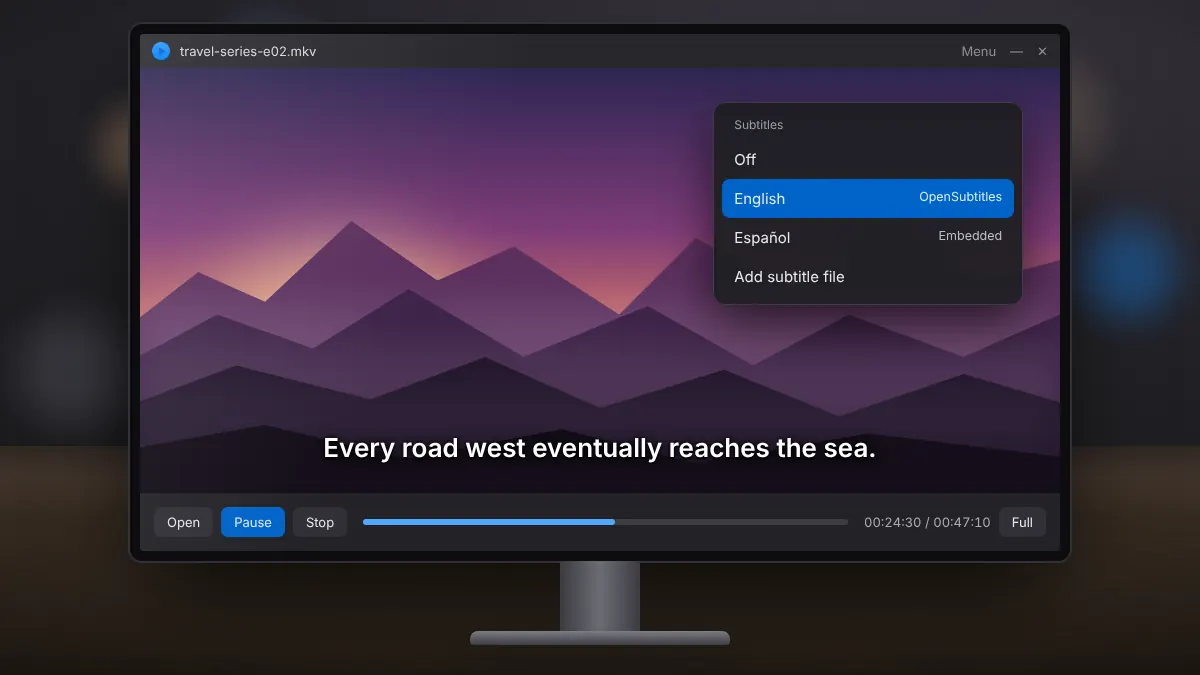
Matching subtitles are fetched from OpenSubtitles.org, and tracks embedded in MKV files or saved next to your video load on their own.
Plays common and demanding formats, including HEVC (H.265), AC-3, DTS and WebM, from local files, web streams and torrents.
H.264 and HEVC video can be decoded by your graphics hardware, which keeps playback smooth and the processor cool.
An optional proxy for torrent traffic, switched on with the shield icon, hides your IP address from peers in the swarm.
Switch between languages or commentary tracks during playback, and queue local files or every episode in a torrent.
Beyond torrents, it opens AceStream links and M3U8 or RTMP web streams from the same simple window.
In everyday use, the appeal is simplicity. There are no long settings menus to work through before you can watch. Drop in a file or paste a link, choose your subtitle language once, and select the cast icon when you want the picture on the TV. People who find large players intimidating tend to feel at home quickly, while the codec support and hardware decoding keep demanding files playing smoothly.
A file shared over BitTorrent is split into thousands of small pieces. Soda Player changes the order in which those pieces arrive, so you can watch long before the whole file is on your computer.
The player joins the swarm of people sharing the video and finds peers.
It asks for the opening pieces first, then the section just ahead of you.
Once a short buffer is ready, playback starts while the rest keeps arriving.
Pieces you already have are passed on to other viewers as you watch.
A normal torrent client collects pieces in whatever order other people can supply them, so you only get a playable file at the end. Soda Player keeps fetching the part just ahead of your playback position, which is what lets a film start after a few moments.
Jumping to a later scene works the same way: the player shifts its priority to the pieces around the new position. If those parts have already arrived the jump is instant; if not, there is a brief pause while they buffer.
The sharing step is what makes BitTorrent fast, and it is also why the content you choose matters. Streaming a torrent means distributing it too, so stick to videos you are allowed to share.
Public domain films, Creative Commons releases and material shared by its creators are all good choices. Our guide to legal torrent streaming lists reliable places to find them.
Soda Player handles the formats you are most likely to meet, from everyday MP4 files to high-efficiency HEVC video with surround sound, and accepts several kinds of links as well as files on your drive.
Whether a specific file plays smoothly also depends on your hardware. HEVC and 4K content benefit most from hardware decoding, so keeping your graphics driver up to date makes a noticeable difference. If a stream stutters, our buffering guide explains how to tell a network problem from a decoding one.
Short, practical articles for the questions people ask most, from first setup to casting and fixing slow streams.
A clean setup on Windows 10 or 11, from saving the installer to opening your first video.
Read fullOpen a magnet link or torrent file, start watching while it buffers, and keep your streaming legal.
Read fullHow automatic subtitle search works, how to load your own files, and quick fixes for timing problems.
Read fullSetup uses a standard Windows wizard and takes a couple of minutes. The one step that needs attention is the firewall prompt, because the player needs network access to stream and cast.
Use the download section above. The file goes straight to your Downloads folder.
Open it and confirm the Windows security prompt that asks to allow changes.
Permit Soda Player on private networks so streaming and casting can connect.
Open a file, drop in a torrent you have rights to, or paste a stream link.
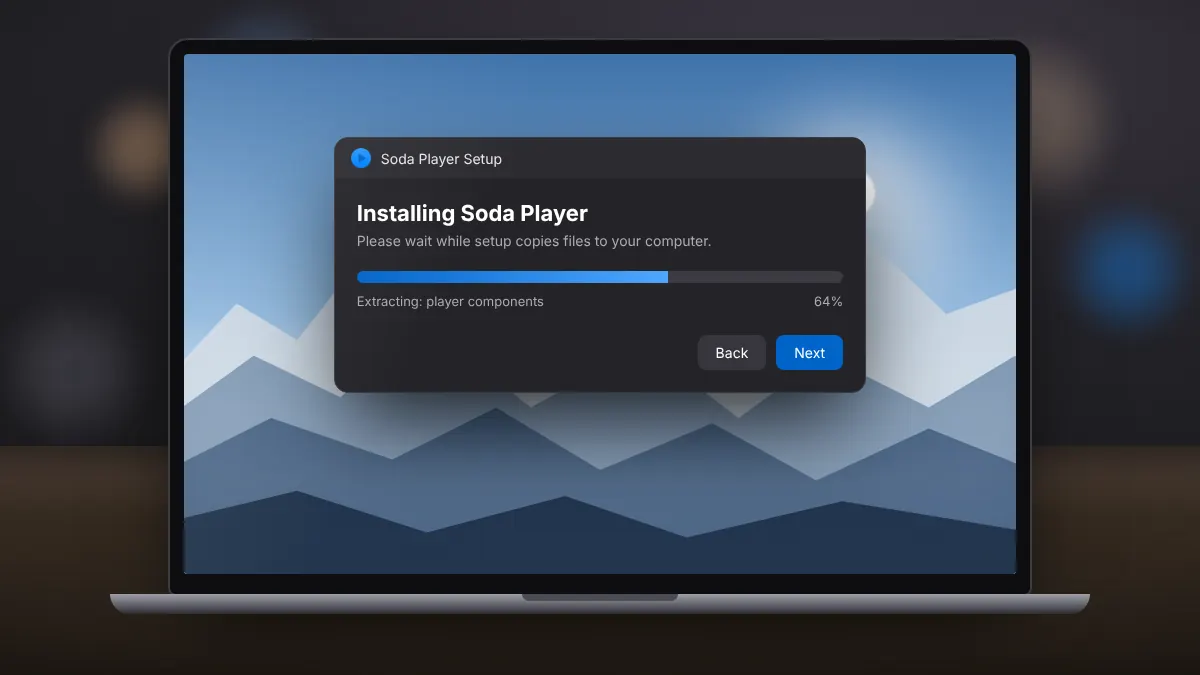
Want more detail? The full installation guide covers each screen and common problems. After setup, take a moment to choose your preferred subtitle language. Soda Player remembers it, so future videos load matching subtitles automatically. If you own a Chromecast or Apple TV, it is also worth testing the cast icon once with a local file, which confirms your firewall and network settings are ready before you need them.
Soda Player runs on modest hardware for standard video. These are practical figures; streaming high-resolution torrents also depends on your internet connection.
For HD video and casting
For 4K, HEVC and smooth streaming
For torrent streaming, the connection usually matters more than the computer. A modest laptop on a steady connection will often stream better than a powerful desktop on weak Wi-Fi. A wired connection to your router and an up-to-date graphics driver are the two upgrades that make the biggest difference. Casting needs a Chromecast, Apple TV or Chromecast-enabled TV on the same network, and a separate macOS version of the player is available for Mac users.
BitTorrent is a legitimate technology used by archives, open-source projects and creators. A few simple habits keep your streaming safe, private and within the law.
There is a large and growing library of video you can stream with a clear conscience. The Internet Archive hosts thousands of public domain films and documentaries, many with torrent downloads, and open movie projects release their work under Creative Commons licences. Choosing these sources keeps you on the right side of the law and supports the people who share them.
Quick answers about Soda Player, torrent streaming, casting and subtitles.
Yes. Soda Player is free to download and use. The developer also offers a premium edition with extra features, but streaming, casting and subtitles work in the free version.
Soda Player is available for Windows (Windows 11, 10, 8 and 7) and macOS. There is no official version for Linux, Android or iOS.
Torrent streaming means watching a video shared over BitTorrent while it is still arriving. Soda Player requests the parts near your playback position first, so the video can start after a short buffer.
The player itself is legal software. Whether streaming is legal depends on the content: public domain films, Creative Commons releases and material shared by its creators are fine, while copyrighted films shared without permission are not.
Yes. Select the cast icon during playback and choose your device. Both devices need to be on the same home network, and the firewall must allow Soda Player on private networks.
The player reads subtitles embedded in MKV files, loads SRT files with the same name as your video, and can search OpenSubtitles.org for a match in your chosen language.
It turns on the built-in SOCKS5 proxy for torrent traffic, which hides your IP address from other peers. It is off by default and does not cover traffic from other apps the way a VPN does.
Slow buffering usually means few seeders, a busy connection or a blocked firewall. Choose well-seeded content, pause other downloads, allow network access and try a wired connection.
The Windows installer for version 1.4.2 is about 82 MB. The installed program needs a little more space, so allow around 300 MB.
No. sodaplayer.org is an independent guide and download resource. It is not affiliated with the developer of Soda Player. The installer linked here is the publicly distributed release.